This tutorial will explain simple steps to integrate our Angular 9 app in MVC Core.
Often in real world projects, Angular teams works in parallel with other teams. Once the angular part of the project is done, they need to supply their bundled files to the applications team to incorporate their project in the solution. But suppose the application is using MVC core, it will first need to set up the solution with Angular and then install the files. So we will make use of our angular application we created throughout most of this tutorial. Please contact me for project solution.
Let’s create a new MVC solution using Visual Studio 2019. The project structure looks like below.
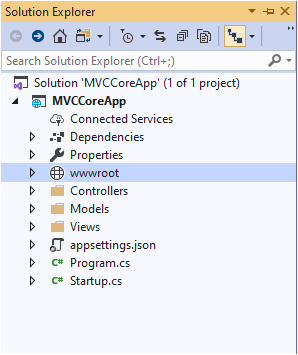
We will install our angular app in the wwwroot folder. The wwwroot folder contains all the static files like images, lib, javascript, css, etc. So first, we will install a new angular app in wwwroot, this will create all required dependencies and json supported files and then copy the angular projects in this folder.
Lets open the command prompt and Navigate to the wwwroot folder to create a new angular app.

Once the AngularApp is created inside wwwroot, copy the angular application contents to this folder.
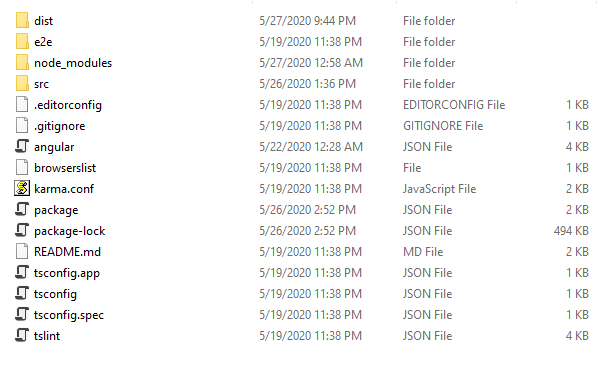
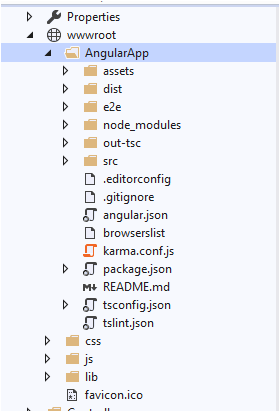
Once we have copied the project files in this folder, the next steps will be to build the angular project.
ng build –deploy-url=\AngularApp\dist\AngularApp
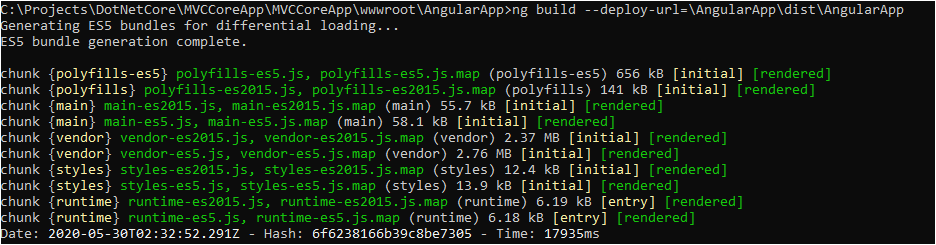
Important thing to note here is that we cannot do ng serve to run the application. If we do that, Angular app will run on seperate port and our MVC Core app will run on another port and we do not want that to happen, we know typescript will convert and bundle the files to javascript files, so that will be easily integrated in the consuming application, so we will copy the bundled js files tags created in the dist folder to the mvc core application’s index.cshtml page.
Inside the Angular app’s dist folder
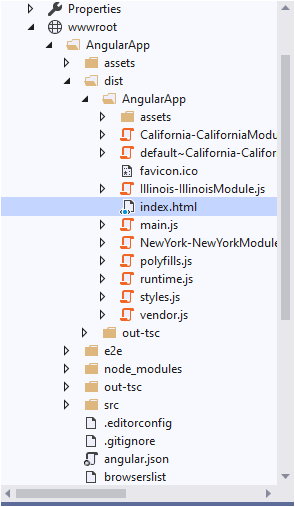
index.html
<!doctype html>
<html lang="en">
<head>
  <meta charset="utf-8">
  <title>MyFirstAngularProject</title>
  <base href="/">
  <meta name="viewport" content="width=device-width, initial-scale=1">
  <link rel="icon" type="image/x-icon" href="favicon.ico">
</head>
<body>
  <app-root></app-root>
<script src="runtime.js" type="module"></script><script src="polyfills.js" type="module"></script><script src="styles.js" type="module"></script><script src="vendor.js" type="module"></script><script src="main.js" type="module"></script></body>
</html>
So index.html contains the script files generated by angular. We will copy this to MVC’s index.cshtml and give the right path in the src.
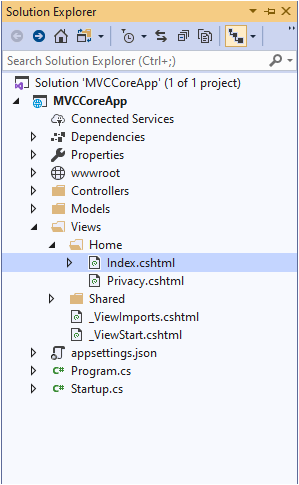
index.cshtml
@{
    ViewData["Title"] = "Home Page";
}

<!doctype html>
<html lang="en">
<head>
    <meta charset="utf-8">
    <title>AngularApp</title>
    <base href="/">
    <meta name="viewport" content="width=device-width, initial-scale=1">
    <link rel="icon" type="image/x-icon" href="favicon.ico">
</head>
<body>
    <app-root></app-root>
    <script src="~/AngularApp/dist/AngularApp/main.js"></script>
    <script src="~/AngularApp/dist/AngularApp/polyfills.js"></script>
    <script src="~/AngularApp/dist/AngularApp/California-CaliforniaModule.js"></script>
    <script src="~/AngularApp/dist/AngularApp/Illinois-IllinoisModule.js"></script>
    <script src="~/AngularApp/dist/AngularApp/default~California-CaliforniaModule~Illinois-IllinoisModule~NewYork-NewYorkModule.js"></script>
    <script src="~/AngularApp/dist/AngularApp/NewYork-NewYorkModule.js"></script>
    <script src="~/AngularApp/dist/AngularApp/runtime.js"></script>
    <script src="~/AngularApp/dist/AngularApp/styles.js"></script>
    <script src="~/AngularApp/dist/AngularApp/vendor.js"></script>

</body>
</html>
Make sure the path of the src is correct. The configuration is complete.
Now do an ng build –watch

Run the MVC Core application
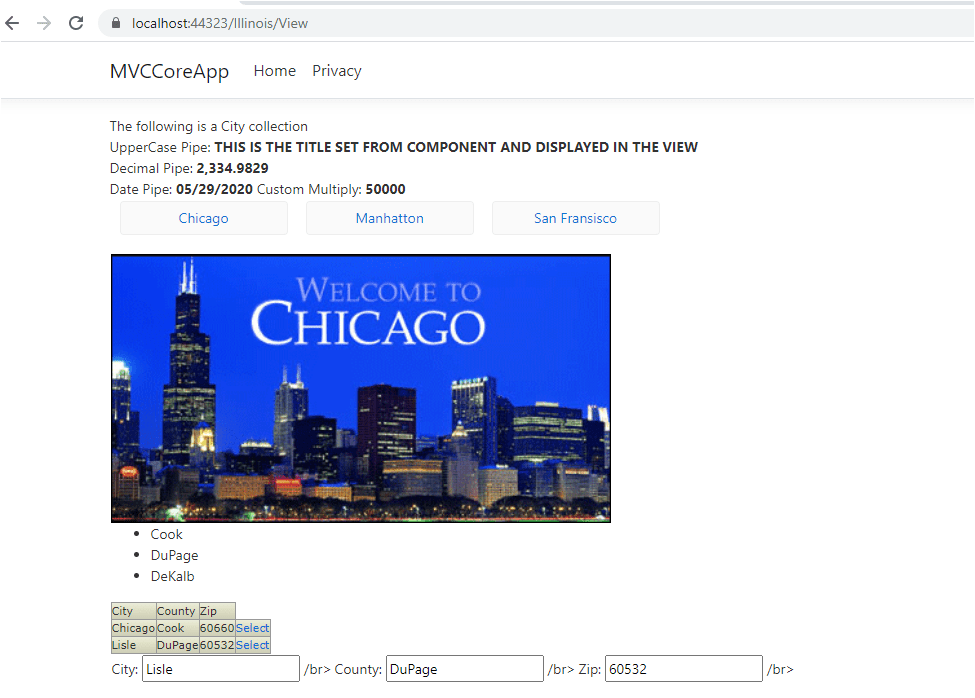
The integrated Angular application now works with our MVC Core application. In this way we can integrate any Angular app in any other consuming app too. This is a one time process as our MVC Core just needs the link to the javascript files. Even if the angular team is still working on new features, it wont affect the configuration in the index.cshtml and the src file is already linked to the Angular folder.
 Tech Tutorials