Understanding the project structure of Angular
To open the Angular project which we created in our project folder please follow below steps:
Launch Visual Studio Code
Click on Open Folder
Navigate to the project folder and click on ‘select Folder’
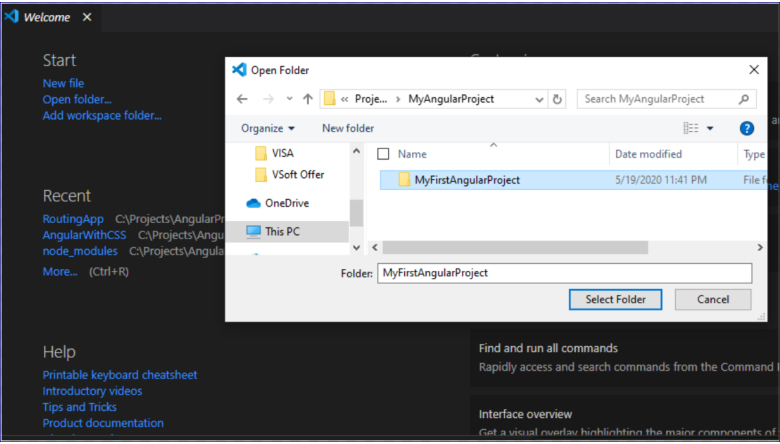
The solution will open the folder structure on the left menu of the VS code IDE.
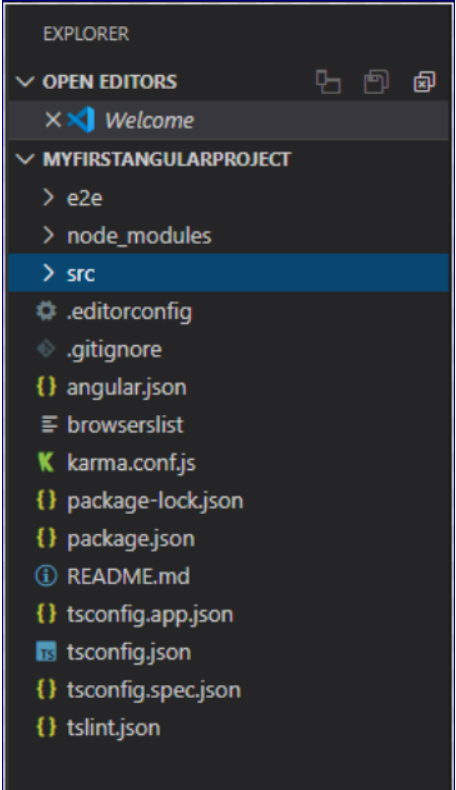
Open Editors:
All the solution file that are opened will be listed here. It provides option to close or save a file or all files. MyFirstAngularProject is the solution folder and it lists below sub folders.
e2e:
The folder will have End to end testing modules. The testing framework of your application can be consumed here.
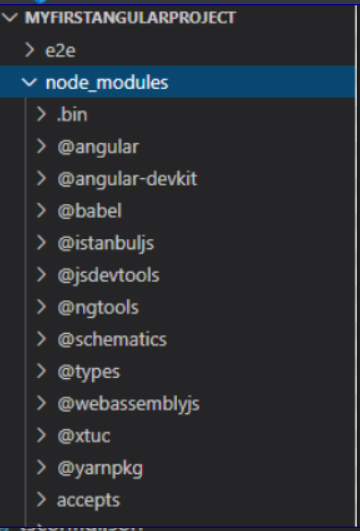
node_modules:
This will list out all the dependencies that are installed by angular or through node package manager to run the application. The dependencies config can be found in the package.json file:
src:
The src has the app folder which will list out your sub module files. In real projects you can have submodules like ‘Admin’, ‘Customer’, ‘User’ and each of them will have UI, Model, Code files.
The files with .ts are the typescript files.
The .css is the style file. You can define a centralized style and embed to views pertaining to ‘app’ folder
The app.component.html is the view file and all the view controls can be placed in this.
The app.component.ts can be thought of as a code behind file for the app.component.html
The app.module.ts is the module file containing decorators, imports, providers, bootstraps that connects with app.component.ts

An important folder ‘dist’ is missing from our initial project structure. This is because we have not build the solution yet.
 Tech Tutorials